The tab “Linked accounts” is missing.
Your plan does not include the Sales or the Service app. Change your plan on our pricing page or contact us.
Zoom X Mister James
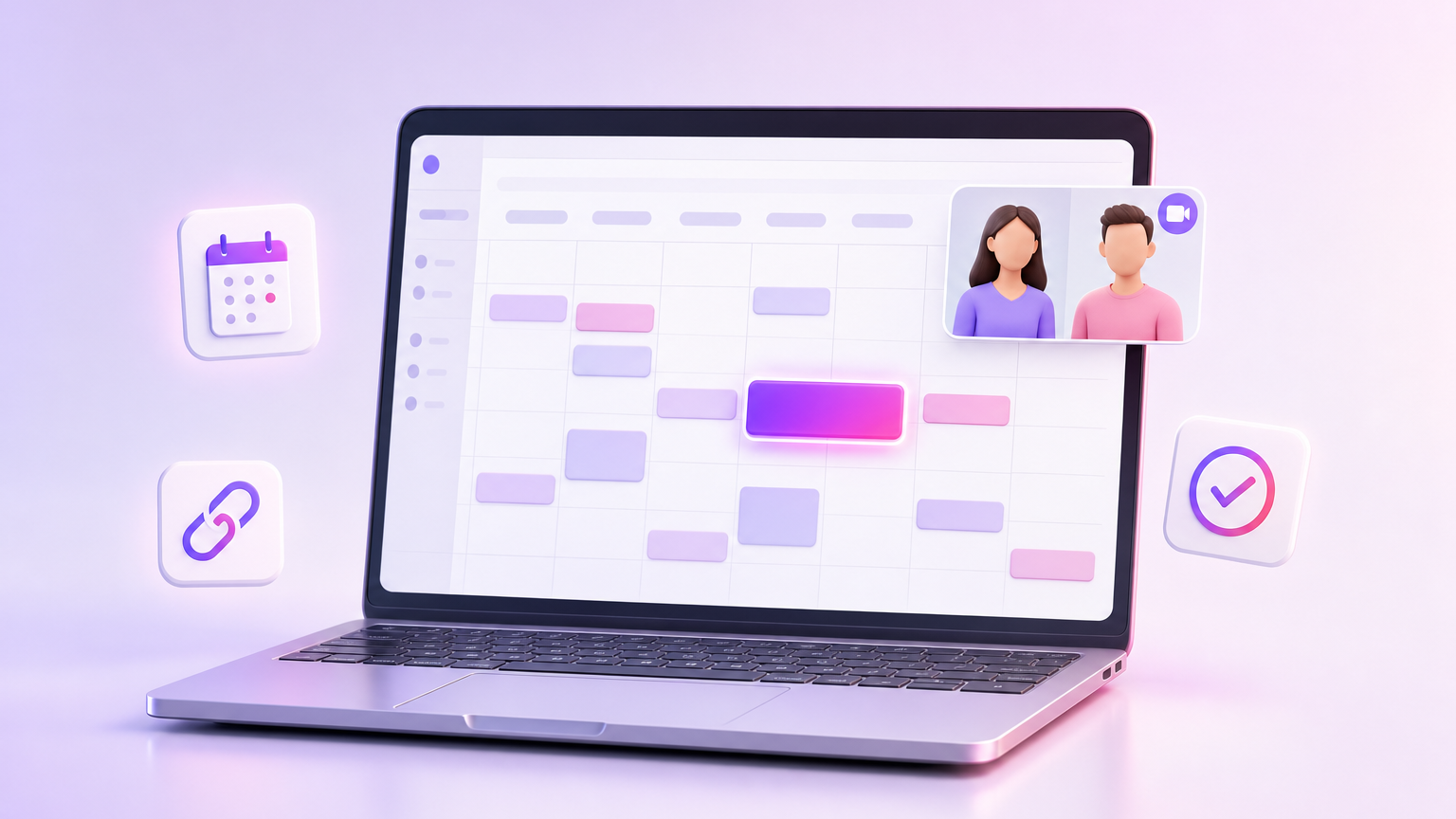
Mister James creates Zoom meetings for you: every appointment that needs an online meeting gets its own Zoom meeting and join link – whether you plan it yourself in the Mister James calendar or a customer books it online.
Each Mister James user connects their own Zoom account. Mister James does not run inside the Zoom client.
Before you start
Setup in 5 steps
Mister James only asks Zoom for the permissions it needs:
If the connection does not work, see “Troubleshooting” below.
Daily Work
Typical uses: sales demos, consultations, onboarding sessions and support calls with customers.
Change the time or the title of the appointment and click Save. Mister James updates the existing Zoom meeting – the meeting ID and the join link stay the same, no second meeting is created.
Customers can book appointments with you online – through appointment links, booking pages and forms of your website, the website chatbot or the AI phone assistant – and event types of the Booking Planner can be booked as well.
Wherever you choose Zoom meeting as online meeting or meeting type, Mister James creates the Zoom meeting with the Zoom account of the host who receives the booking. The join link is saved with the appointment, and if you send booking confirmations, it is part of the confirmation e-mail and its calendar file.
The host needs a connected Zoom account; if the meeting cannot be created, the booking is still saved, without a meeting link.
Full Control
You can remove the integration at any time in one of two ways:
In Mister James (recommended): Open Settings › User › Linked accounts, click Unlink account in the row Zoom account and confirm with Yes. Mister James revokes its access at Zoom – the app disappears from the apps added to your Zoom account – and immediately deletes the stored connection data (access token, refresh token and the e-mail address of your Zoom account).
In Zoom: Open the Zoom App Marketplace, go to Manage › Added Apps, find “Mister James” and click Remove. Zoom withdraws Mister James's access immediately. To delete the stored connection data in Mister James as well, click Unlink account in Mister James as described above.
What removing means:
Your plan does not include the Sales or the Service app. Change your plan on our pricing page or contact us.
Only the e-mail address of your Zoom account (once, to assign the connection) and the meetings it creates and updates for your appointments. Mister James does not access recordings, transcripts, chats or contacts in Zoom.
Monday to Friday, 9:00 to 17:00 (CET/CEST, except public holidays in Bavaria, Germany). We answer every request within one business day.

The AI operating system for your business.
© Copyright 2026 by Rowisoft GmbH. All rights reserved.
Various trademarks held by their respective owners. Mister James and Rowisoft are registered trademarks of the Rowisoft GmbH.